

English is the new programming language. As Andrej Karpathy explains, you can increasingly describe what you want software to do instead of writing every line yourself.
But describing an idea isn’t the same as explaining how it should work. “Build me a CRM” leaves the AI to guess who uses it, how the data connects, and what happens when someone clicks a button.
That’s where prompt engineering comes in. It’s not about finding magic words or writing the longest possible prompt. It’s about giving AI clear instructions, the right context, and a manageable task.
In this guide, you’ll learn how to prompt AI to build web apps: turn your idea into a brief, review the plan, build in checkpoints, and test what comes back. We’ll show how to put that into practice with Nodavelo AI or your preferred agent through Nodavelo MCP.
How to prompt AI to build a web app
1. Turn your idea into a clear brief
Start with who the app serves, what they need to accomplish, the first useful user flow and the features you can leave for later. If those decisions are still fuzzy, use the app development roadmap to work through them.
General prompts are useful for exploration. For example:
"Create a home page for an email marketing app."
That leaves room for ideas. Once you have a particular layout or behavior in mind, switch to specific instructions rather than expecting the AI to infer it.
Use this reusable structure when writing an AI prompt:
- Goal: who the app serves and what they need to accomplish.
- Context: the approved brief, relevant project resources and examples.
- Task: the page, workflow or behavior to create or change now.
- Constraints: what must stay unchanged and what belongs in a later version.
- Output: a brief, a plan, a change or an explanation, depending on the stage.
- Check: what you will observe to decide whether the result meets the request.
Use bullets, numbered steps and line breaks to separate requirements. Explain terms specific to your business, just as you would for a colleague joining the project.
For a lead-analysis app, start with a brief rather than a build request:
Read the resulting brief and correct its assumptions. Decide whether the first version uses clearly labeled sample results or a real analysis service you have connected, and who can read or change saved results.
💡 Ready to build? Give your brief to Nodavelo AI, or use your preferred AI agent with Nodavelo MCP.
2. Give AI the context it needs
Supply the project resources, files and references that explain the task: the workflow you want to change, the data it uses, the design to follow and an example of the expected output.
Prompt engineering vs context engineering
Prompt engineering focuses on how you instruct the AI. Context engineering focuses on which information is available to it at each step, including project state, references and previous decisions. Your prompt tells the AI what to do. The surrounding context gives it the information it needs to do it well.
For a loading state, prompt engineering means explaining when the indicator starts and ends. Context engineering means including the Analyze button and its existing workflow, so the AI knows which behavior to work with.
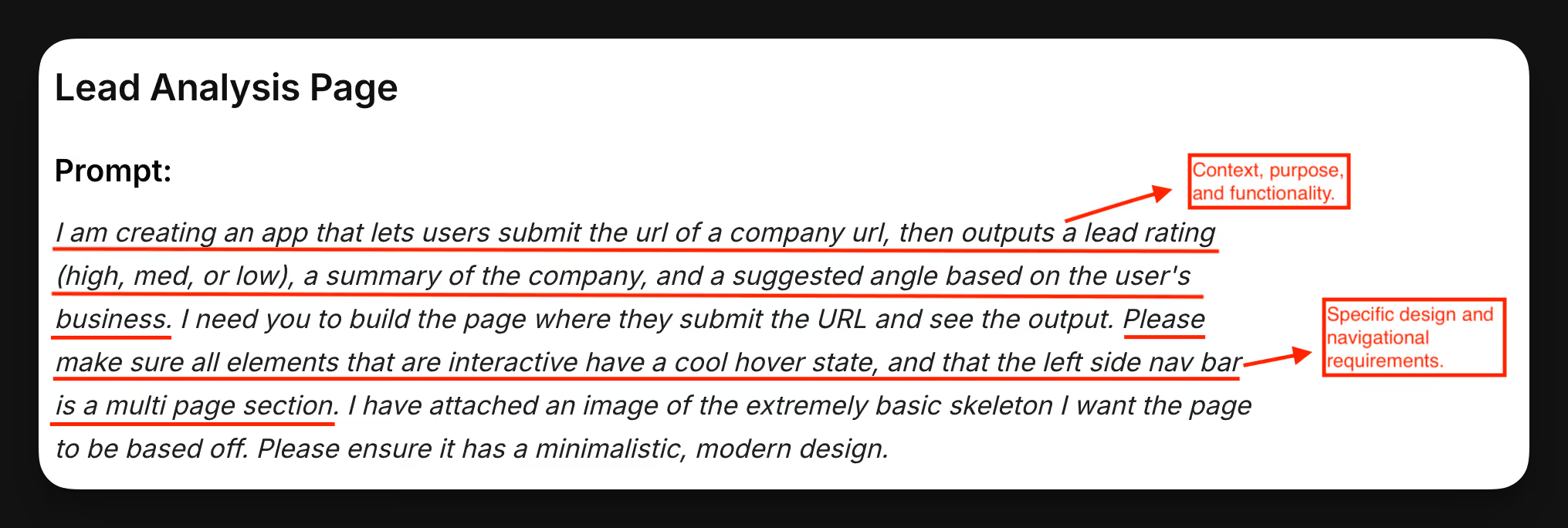
This prompt was created by Matthew, our Education Lead, for a workshop we did with BuildShip on how to create a lead intel app:
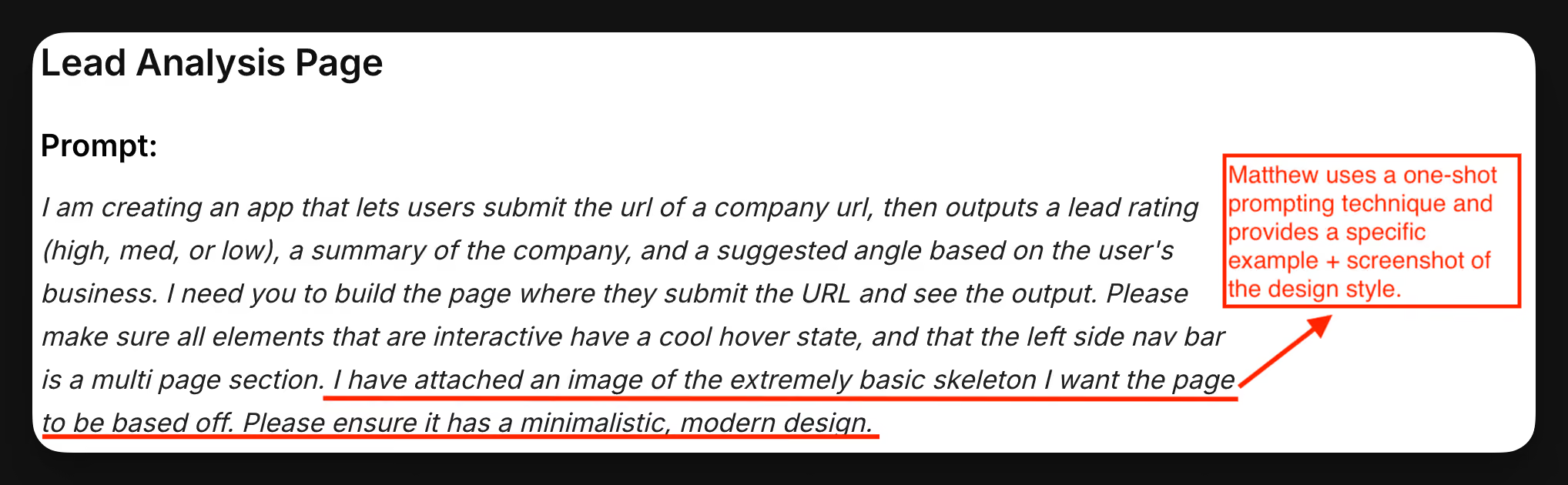
An example gives the AI a concrete pattern to follow. Zero-shot prompting supplies no examples, one-shot prompting supplies one, and few-shot prompting supplies several. Choose examples relevant to the task rather than adding more for their own sake. Here’s how Matthew uses one example:
There is a straightforward way to pass relevant context to Nodavelo AI so it can focus on the elements and logic your request concerns:
- Select an element on the page or in the Layout Tree to include it in the next prompt.
- Use the + beside the chat input to add related workflows, formulas or data through the AI context manager. Your project Library is included automatically.
- Attach an image, PDF or text file in Plan, Build, Ask or Edit component mode. File attachments are not supported in Edit workflow or Edit formula.
For a visual reference, explain what to follow: “Use this screenshot's two-column layout and compact result cards, but keep our existing colors.” That is more actionable than “make it modern.”
When you resume in a fresh chat or switch clients, bring a short handoff: the approved brief, decisions made, last tested checkpoint, known issue and next allowed change. Check an AI-generated summary against the project before reusing it.
3. Review the plan before it builds
Once the brief and references are clear, ask for a plan you can review before the app changes. In Nodavelo, use Plan mode, not just a sentence asking the default Build mode to wait:
- Select Plan and describe the first checkpoint.
- Click Review the plan on the plan card.
- In the Build plan panel, inspect Summary, Technical details and Assets created / updated.
- Choose Ask for changes to revise it, or Approve & build to execute it.
Nothing is created in Plan mode until you approve. For the lead-analysis page, check that the plan uses the agreed source of results, excludes deferred features, and identifies the page, workflow and data it needs to create or update. If it saves records, check the intended read and edit rules too.
Try this planning request:
If you are using Claude Code through MCP, ask it to inspect the named project, propose checkpoints and wait for your approval before making changes. This is a request to that client, not Nodavelo's native Plan approval screen. Check how your client handles permissions and review its proposed actions.
4. Build one reviewable part at a time
Prompt chaining means breaking a task into connected prompts, using each reviewed result to guide the next request. For a web app, a checkpoint might be one page or one change to a workflow.
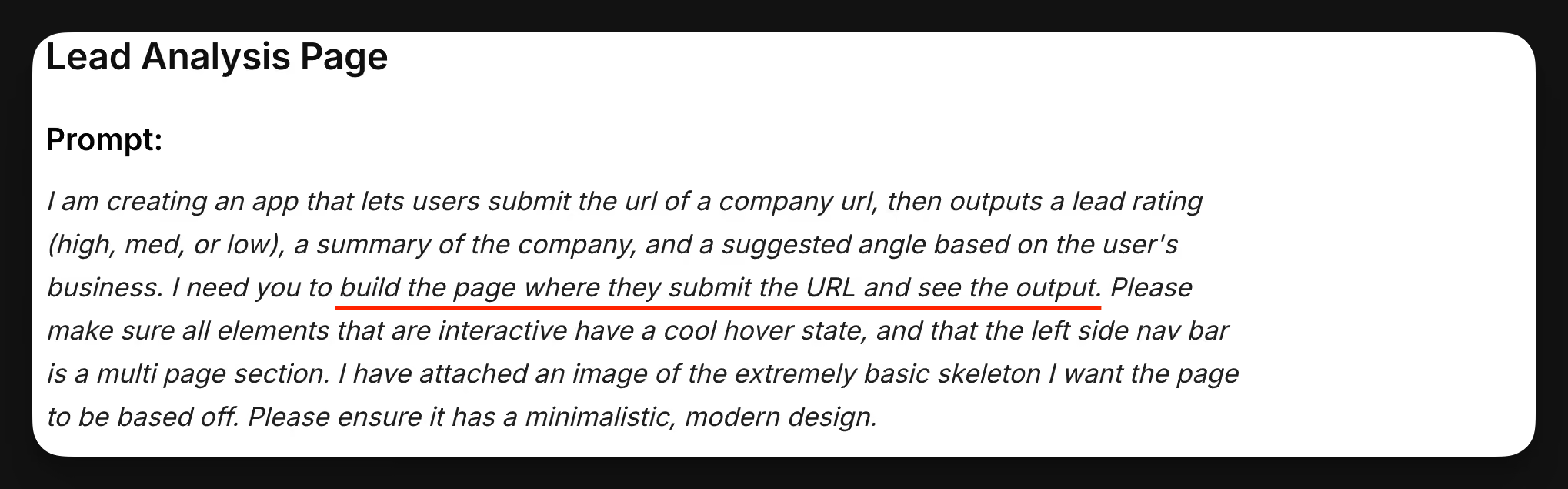
See how Matthew focuses on one page at a time, instead of prompting to build an entire app at once. For other app pages, he created dedicated prompts. The subsequent changes and adjustments were prompted separately in the Nodavelo AI chat:
After the first flow works, avoid an open-ended request like:
Make my lead app better.
Select the relevant button, include its workflow and ask for a bounded change:
This names what changes, what stays, what success looks like and when to stop. Ask for a short summary of changed pages, workflows and data so you know where to inspect the result.
5. Ask AI to test, then review the result
Native Nodavelo AI can test your app in the editor's preview: it opens pages, fills forms and clicks controls after you give it permission. Ask it to test the Lead Analysis flow, rather than “check everything.”
Before clicking Let it test, check the data and integration destinations. These are real interactions: email or payment workflows can run, and test records are not automatically removed. Use disposable data and safe test connections; a prohibition in the prompt is not a sandbox.
Review what passed, failed or could not be checked. The AI can fix a reported bug directly and asks which other issues to fix. Request another test after fixes; it does not automatically rerun the whole test. Review and remove test records when finished.
Then try the flow yourself in the environment people will use. If results are private, check allowed and denied actions with separate test users. One preview run is not proof of complete access control, accessibility or production readiness.
Using a coding agent with browser tools? Ask it to open your app, test the user flow, and report what passed or failed. After a fix, ask it to repeat the test.
6. Diagnose failures before asking for another fix
Instead of “it still doesn't work,” give the AI enough information to reproduce the problem. In native Nodavelo AI, select the read-only Ask mode when you want a diagnosis before edits. Opening a workflow can switch to Edit workflow, so check the mode before sending.
After reviewing the diagnosis, authorize the repair, then repeat the failing case and the previously working path. If repeated fixes keep changing unrelated behavior, stop expanding the app and isolate the smallest reproducible failure.
If the diagnosis reveals an ambiguous prompt, ask the AI to identify missing context or conflicting requirements, then review the rephrased request. If changes have made things worse, return to a known-good version where your tool supports it. Check what recovery restores; undoing a build does not necessarily reverse submitted records or external actions.
Sometimes, you’ll need a human touch to make the changes manually. At Nodavelo, we combine AI with a visual interface that allows you to remain in control and step in when necessary.
Common AI prompting mistakes: what to do instead
A shorter prompt isn't automatically a better prompt
“Build my entire CRM” is short but asks for a huge amount of work. A detailed request to fix one approval workflow can be long and still be focused. Scope matters more than length. Think big in the brief. Build small at each checkpoint.
More context isn't always more useful context
An old design reference or superseded requirement can contradict the instructions you just gave. Keep the information relevant to the current task and remove stale or conflicting references instead of carrying every conversation forward.
"Don't change this" isn't the same as protecting it
A prompt states your intention; an editing control enforces a boundary. Selecting context only focuses attention and does not restrict access to other project resources.
💡 Protect finished work when it should stay unchanged. Resource protection can block edits by both native Nodavelo AI and external MCP agents while keeping the resource available as context. Protect resources outside the next task, not the page you want changed. This is an AI-edit guardrail, not a replacement for your app's user permissions. Protected backend endpoints may still be called.
"Done" is a completion message, not an acceptance test
The AI finishing its work tells you that it stopped, not that the feature meets your requirements. Accept the change based on observed behavior, not the confidence of the reply.
"It still doesn't work" isn't a useful bug report
That reply gives the AI no way to distinguish the original failure from a new one. Report the input, expected result, actual result and exact error so the next repair addresses an identifiable problem.
You don’t need a perfect prompt to start building. Get clear on what your app should do, give AI the context it needs, and work through changes you can review and test. Your next prompt should build on what you’ve learned, not start the guessing all over again.
Have an app idea in mind? Start building with Nodavelo and put these prompting techniques into practice.
Frequently asked questions
Do I need to know how to code to prompt AI to build an app?
You can start by describing what the app should do in plain language. You don’t need to write every line of code, but you do need to review the result: what data it saves, who can access it, and whether its features work as intended.
Can I use the same prompt with different AI tools?
Yes, but don’t expect identical results. Reuse your app brief, requirements, and examples, then adapt the instructions to the tools and project context available to each AI agent. A prompt that refers to a selected element in Nodavelo won’t provide that same context in a separate chat.
Should I ask AI to improve my prompt before building?
Yes, especially when your idea is still unclear. Ask it to identify missing information, conflicting requirements, and decisions that affect the build. Review its suggestions before proceeding so it doesn’t turn assumptions into requirements.
What should I do when an AI coding agent forgets earlier instructions?
Provide a concise handoff: the current app brief, decisions already made, what works, the remaining problem, and the next task. Include the relevant project resources rather than pasting the entire conversation, which may contain outdated or conflicting instructions.
How do I know whether my prompt worked?
Check the result against the behavior you requested. If you asked for a form that saves a record, submit it, confirm the record was saved correctly, and try an empty or invalid input. A convincing explanation or an AI completion message isn’t enough.
Save the prompts that work
Document the prompts that work for your project, along with the context they needed and the result you checked. Keep them in a reusable library rather than starting from scratch each time.
Ready to start prompting with Nodavelo AI to generate UIs, logic and custom components? We prepared a handy workbook with plug-and-play prompts that you can re-use: Design, Logic & Custom Component Prompting with Nodavelo AI [Tips + Examples]